
Your OmniForces answer customers with your information — prices, policies, schedules, service descriptions — not generic AI guesses. That information lives in your workspace knowledge base, which you manage from two desktop apps:
- Knowledge Base (also available as Datasets) — the knowledge manager: upload, write, index, and archive documents.
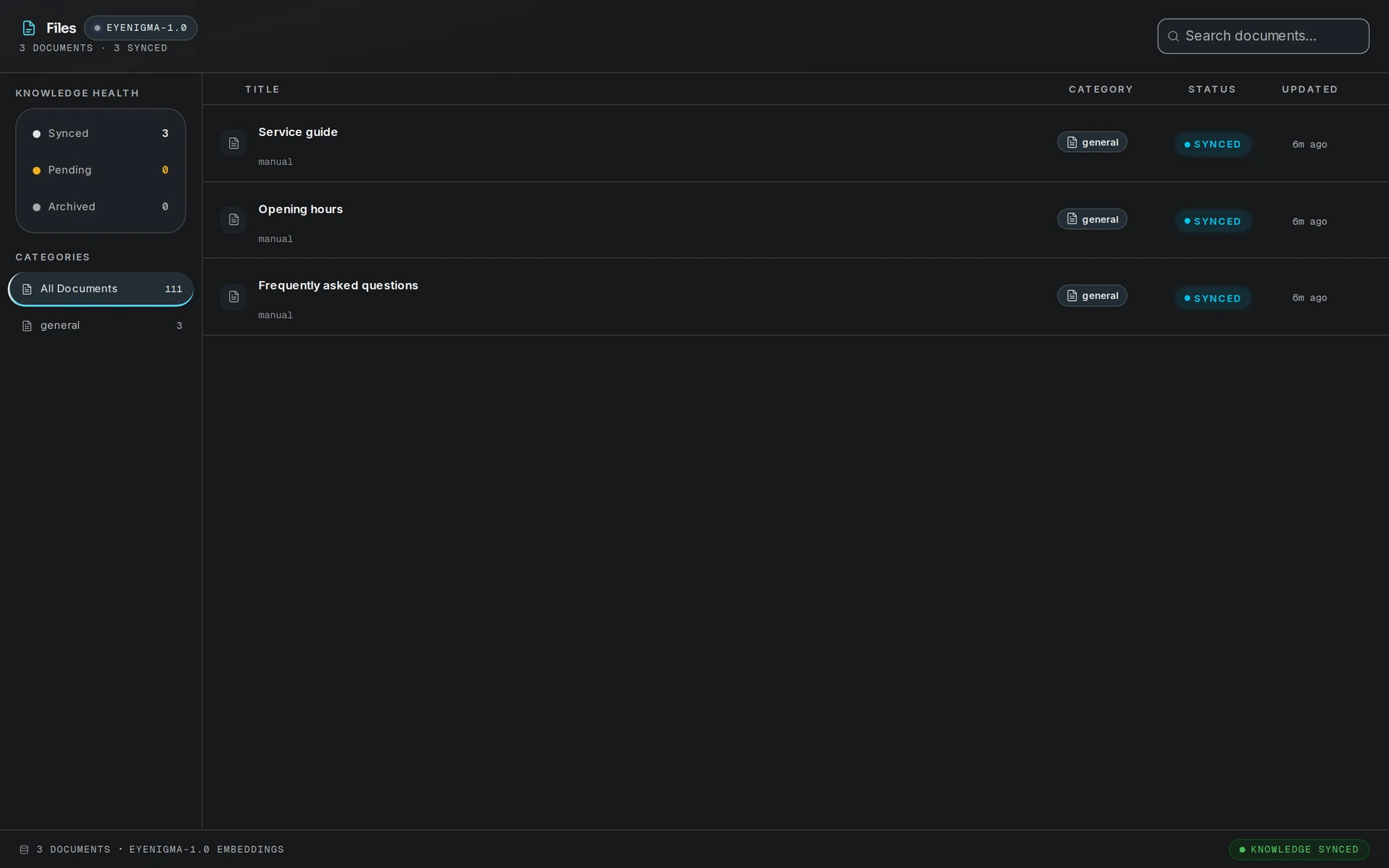
- Quantum Files (the Files app) — a file-manager view of the same documents, with a sidebar for Recents, Documents, Knowledge Base, Uploads, and Trash, in grid or list view.
Adding knowledge
There are two ways to add a document:
- Upload File — accepted formats:
.pdf,.doc,.docx,.txt,.md,.csv,.json. The file's text is extracted and stored as a document. - Add Memory — write knowledge directly in the app. The Add Business Memory form takes a Title, a Category, and the Content your OmniForce should use.
New documents are saved with a pending status. As the app itself notes: "Saved as pending. Use 'Index for AI Search' in the toolbar to activate for AI search."
Indexing for AI search
Indexing is what turns a stored document into knowledge an OmniForce can actually retrieve. When you click Index for AI Search, the document is split into chunks and each chunk is embedded for semantic search. Once indexed, its status becomes synced.
You can index in two ways:
- Index for AI Search in the toolbar processes every document that still needs indexing (up to 25 per batch).
- The per-document reindex action re-processes a single document — useful after you edit its content.
Indexing and reindexing do not consume Neural Credits.
How knowledge grounds OmniForce answers
During a live conversation, your OmniForce searches the workspace knowledge base before answering. The retrieval is semantic: a customer asking "how much is a cleaning?" will match your price-list document even if it never uses those exact words. The same knowledge powers the knowledge lookup step in published workflows.
Only synced (indexed) documents are searchable. Pending documents exist in the app but are invisible to the AI until indexed — which is deliberate: you review content before the AI can quote it. Documents installed by Blueprints arrive as drafts flagged "Includes Blueprint drafts — review content first" for the same reason.
AI-generated knowledge documents
Eyeleven can also generate knowledge documents for you — for example, generating a knowledge base document from a workflow definition so your OmniForce can explain the process it automates. Each AI-generated knowledge document costs 10 Neural Credits. Uploading and manually writing documents is free.
Managing documents
- Statuses — Synced (indexed and searchable), Pending/Processing (not yet searchable), Archived.
- Archive removes a document from active use without deleting your ability to see it happened; archived documents are not searched by the AI.
- Stats bar — Total Sources, Synced, Processing, and Avg Health give you an at-a-glance picture of your knowledge coverage.
Recommended workflow
- Upload your core business documents: price list, service catalog, FAQ, policies.
- Add short "Business Memory" entries for facts that live in nobody's documents — parking instructions, payment methods, promotion rules.
- Click Index for AI Search and confirm every document shows Synced.
- Message your own WhatsApp number and ask a question the documents answer — verify the OmniForce uses your wording and your prices.