
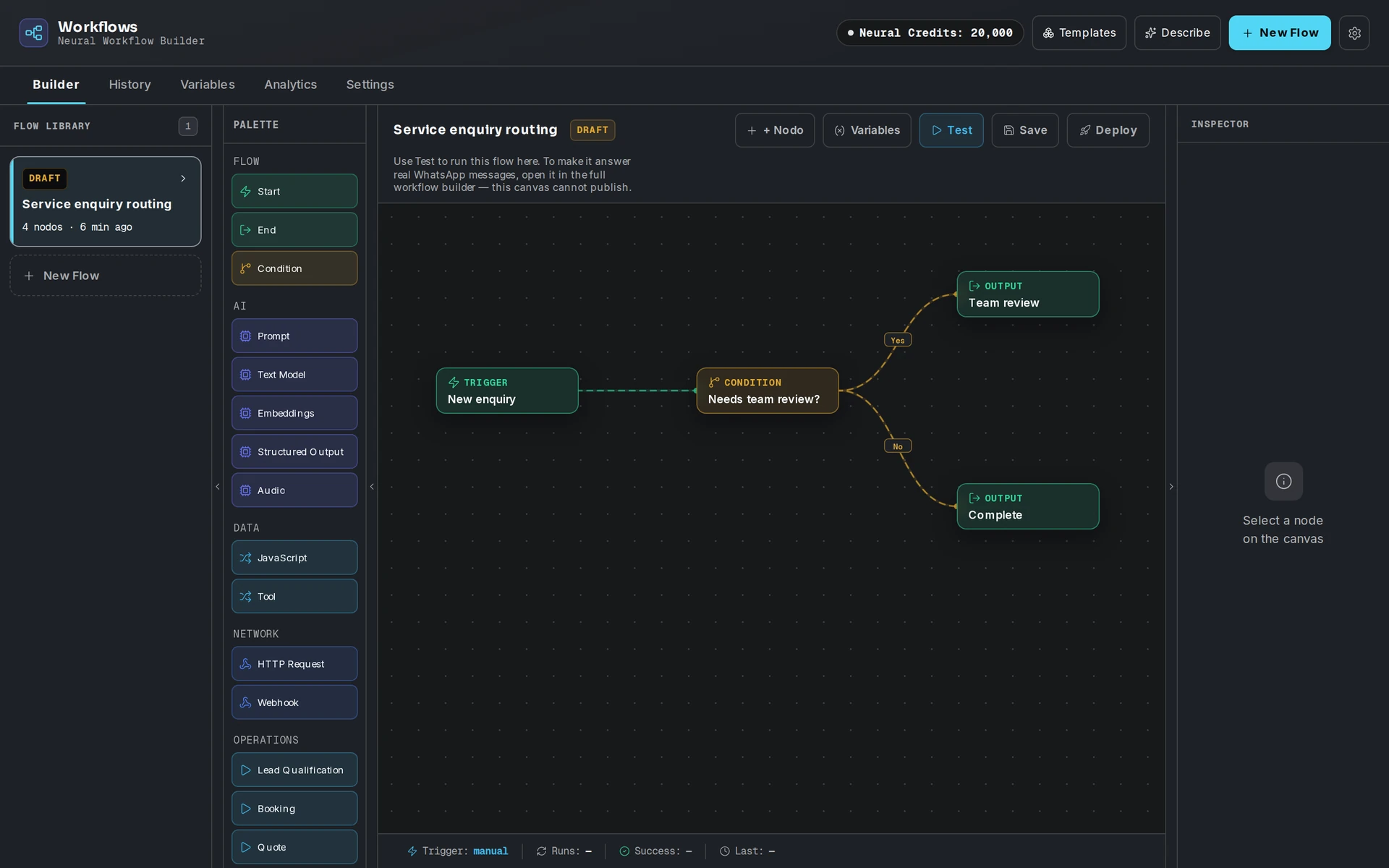
Eyeleven includes a visual workflow builder where you design automations as a node graph on a canvas: each node is a step (an AI call, a business action, a decision), and connections define the order in which steps run.
Open the Workflows app from the Eyeleven OS desktop to work on the canvas.
The canvas
Drag nodes from the palette onto the canvas and connect them. Nodes are grouped into six families (the builder labels them in Spanish):
- Flujo — Inicio, Fin, Condición (branching with simple comparisons such as
input1.field === "value") - IA — Prompt, Modelo de Texto, Embeddings, Salida Estructurada, Audio
- Datos — JavaScript (a restricted, safe subset), Herramienta
- Red — Petición HTTP (public URLs only), Webhook
- Operación — Calificación de Lead, Reserva, Cotización, Actualizar CRM, Seguimiento, Acción de Calendario, Asignar OmniForce
- Personas — Escalación, Aprobación, Intervención Humana
Select any node to edit its parameters in the inspector — for example the prompt and temperature of a text-model node, or the base price and currency of a quote node.
Testing a workflow
Click Probar to run the entire graph immediately. Results stream back node by node so you can watch each step execute and inspect its output. Test runs:
- do not consume Neural Credits;
- are rate-limited to 30 runs per minute per workspace, since each run may call the AI engine once per node.
If a workflow contains an Aprobación (approval) node, the run pauses at that step until a person in your workspace approves or rejects the pending request — sensitive steps never execute on their own.
Saving
Click Guardar to persist your changes as a new version of the workflow. Node positions, connections, and all parameters are saved exactly as you left them. An unsaved-changes indicator tells you when the canvas differs from the stored version.
Publishing to live channels
The canvas and the live inbound runtime are two different execution environments, and it is important to understand the difference:
- The canvas (Probar) supports the full node vocabulary listed above — AI models, JavaScript, HTTP requests, and every business action. It is where you design and test.
- The published runtime — the engine that handles real inbound WhatsApp messages — runs a focused set of conversation steps: knowledge lookup, AI reply, condition, create lead, update lead stage, book appointment, generate quote, send WhatsApp message, notify a human, and wait.
Because of this, the Desplegar button on the canvas is intentionally disabled. As the tooltip explains: canvas flows execute with Probar; publishing to inbound channels is done through the workflow builder in the dashboard's Workflows area. There you use Save Draft to keep iterating and Sync to Eyeleven to publish the active version. Published versions are tracked, and earlier versions can be restored.
Credits
Each execution of a published workflow triggered by a live conversation charges 5 Neural Credits. Canvas test runs are free.
Tips
- Start from a Blueprint in the Neural Store if one matches your industry — it installs workflow drafts you can adapt instead of starting from an empty canvas.
- Keep conditions simple: the condition node evaluates one comparison per node (
===,!==,>,<,>=,<=). - Use the approval node in front of any step you would not want to run without a human sign-off, such as high-value quotes.