
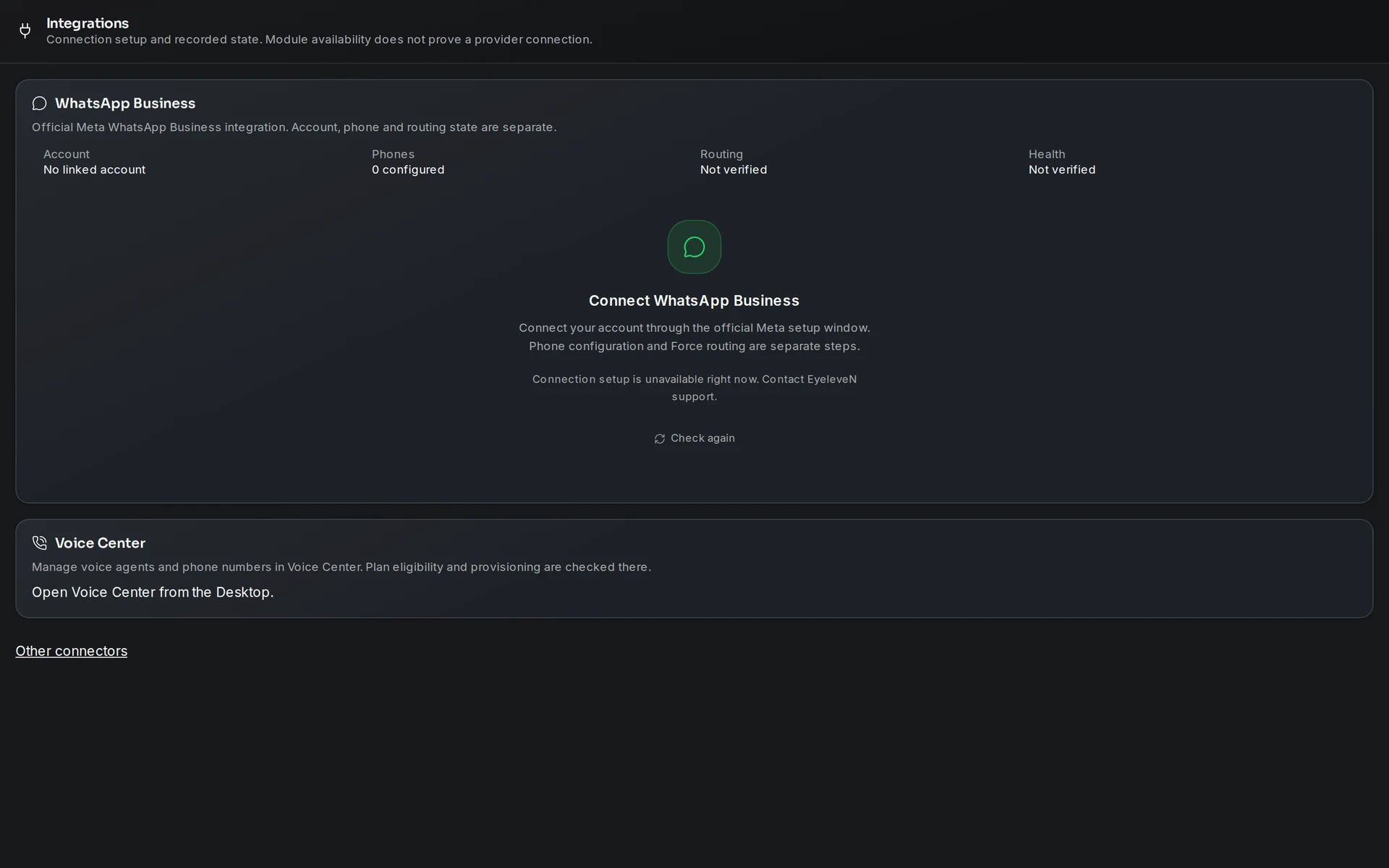
WhatsApp is Eyeleven's primary channel. You connect your own WhatsApp Business Account (WABA) through Meta's official Embedded Signup flow — Eyeleven is a Meta Tech Provider, so the authorization happens directly with Meta in a secure popup, and Eyeleven never sees your Facebook password.
Prerequisites
- A Meta Business account (Meta Business Portfolio) that you administer, or the ability to create one during the flow.
- A phone number to dedicate to WhatsApp Business. A number already active on the regular WhatsApp app must be migrated or released before it can be used with the WhatsApp Business Platform.
- Popups allowed for app.eyeleven.com in your browser — the Meta flow opens in a popup window. If the popup is blocked, Eyeleven offers a fallback: "Popup blocked? Connect in a new page".
Where to connect
You can start the connection from several places:
- During onboarding, in the Knowledge & Channels step, by choosing "Connect own WhatsApp Business Account".
- Later, from the Integrations app (open the Eyeleven menu → Integrations).
- From the Conversations app, which shows a connect panel when WhatsApp is not yet linked.
Connect your number
- Select "Connect via Meta". A Meta popup opens.
- Sign in to Meta and follow the guided flow: pick (or create) your Meta Business Portfolio, your WhatsApp Business Account, and the phone number you want to connect.
- Authorize Eyeleven to manage your WhatsApp Business Account.
- When the flow finishes, Eyeleven exchanges the authorization code for a secure token and confirms the connection — you will see a message such as "Successfully connected 1 phone number(s)".
If the popup closes without completing, you will see: "Meta popup was closed without completing. Make sure popups are allowed for this site, then try again."
What happens after connection
- Eyeleven stores your WhatsApp Business Account and imports its phone numbers.
- The account is subscribed to webhooks, so incoming customer messages flow into the Conversations app in real time and your OmniForce can answer them.
- In some cases Meta requires you to finish activation steps (for example, display-name review) inside Meta's own tools; Eyeleven will indicate this with a note like "Complete activation in Meta to start responding on WhatsApp."
- The Conversations app shows a live WhatsApp status, including whether the channel is connected.
The 24-hour message window
WhatsApp distinguishes two kinds of business messages:
- Inside the customer service window — for 24 hours after a customer's last message, your OmniForce (or a human operator) can reply freely with any message content.
- Outside the window — starting a conversation, or replying after the 24-hour window has closed, requires a message template pre-approved by Meta.
The Conversations app surfaces this as a "Ventana 24h" (24h window) indicator, so you always know whether a thread is open for free-form replies.
Tips
- One channel per plan tier. Ascent includes 1 channel, Nexus 3, and Hyperion 6; additional channels are available as an add-on. See Plans & Neural Credits.
- You stay in control of your WABA. The number and WhatsApp Business Account remain yours in Meta Business Manager; Eyeleven operates them on your behalf under the access you granted.
- Connecting another account later is possible — the panel offers "Connect another account" after a successful link.