
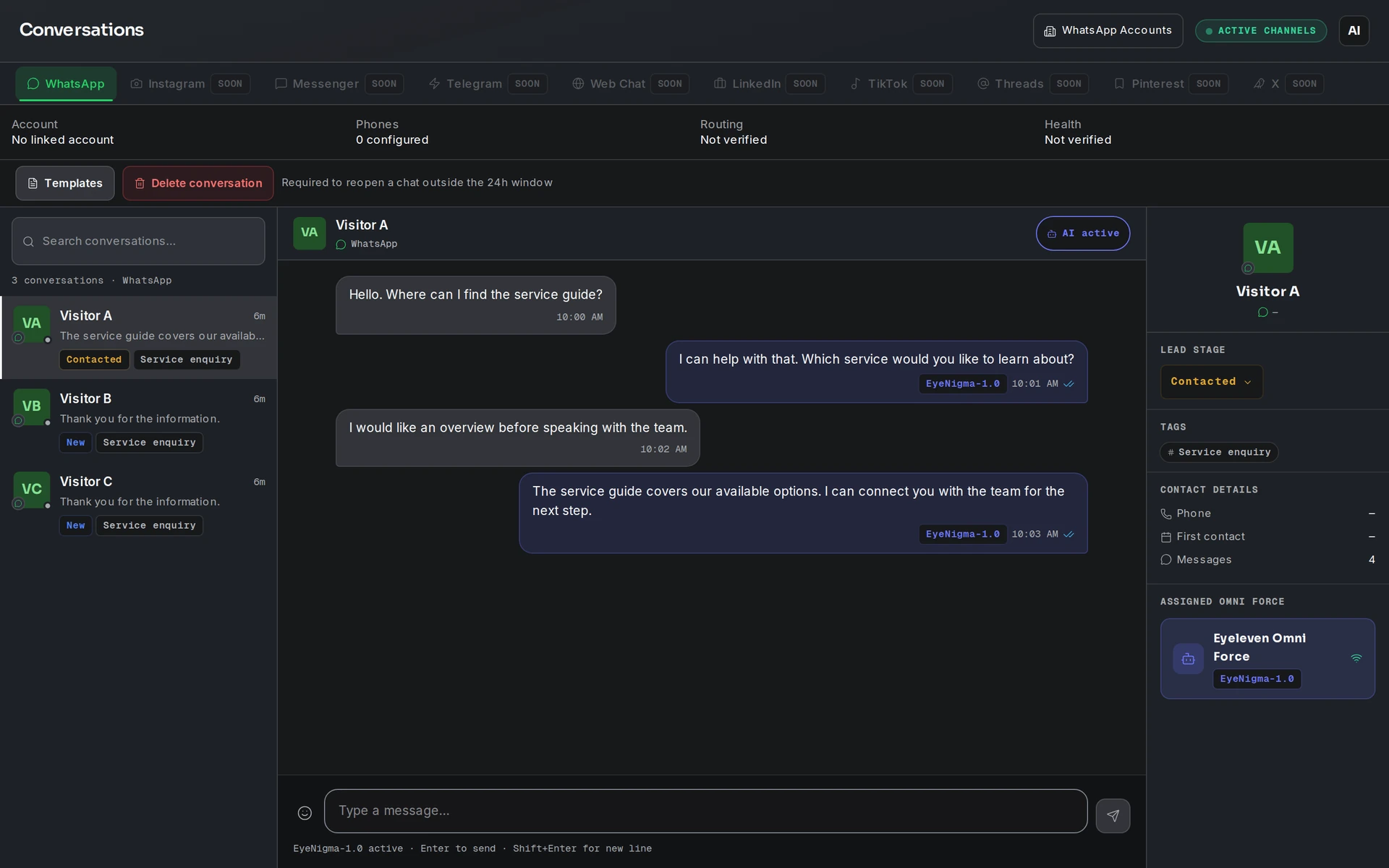
Conversations is Eyeleven's unified inbox. It shows every customer thread your OmniForces are handling in real time, lets you step in whenever a human touch is needed, and keeps lead data — stage, contact details, message history — right next to the chat. Open it from the dock or the Eyeleven menu.
Layout
The app has three panels:
- Left — conversation list. Search plus every thread on the selected channel, with the customer's name, last message, unread count, and a lead-stage chip.
- Center — the thread. The full message history: customer messages, OmniForce replies, and human operator replies, with delivery ticks.
- Right — lead panel. Contact data and the OmniForce assigned to the thread.
Channel tabs
Tabs across the top switch between channels. WhatsApp is the live channel today; Instagram, Messenger, Telegram, and Web Chat are connectable; LinkedIn, TikTok, Threads, Pinterest, and X are marked as coming soon.
When WhatsApp is selected, a status bar shows the channel at a glance: "Estado" (Connected / Not connected), the number of conversations, the "Ventana 24h" indicator (whether the 24-hour customer service window is active — see Connect WhatsApp), and the AI engine in use. If WhatsApp is not connected yet, the app shows a connect panel instead of an empty inbox.
AI-handled threads and taking over
Every conversation is in one of two modes, shown by a pill on the thread:
- "IA activa" — the OmniForce is handling the conversation autonomously.
- "Intervención humana" — a human operator has taken over.
To take over a conversation:
- Open the thread.
- Click the AI/human toggle (its tooltip reads "Cambiar a intervención humana").
- The OmniForce is paused for that conversation only, and the thread is assigned to you. Automation in all other conversations continues unaffected.
- Type your reply in the composer and send. Your message is recorded in the thread and delivered to the customer over WhatsApp.
To hand the conversation back, click the toggle again ("Activar IA") — the assignment is cleared and the OmniForce resumes handling the thread.
The lead panel
The right panel keeps CRM context next to the conversation:
- Lead stage. A stage selector cycles the lead through "Nuevo", "Contactado", "Calificado", and "Ganado". Changing it here updates the customer record immediately.
- "Datos de contacto" — quick facts: "Teléfono" (phone), "Primer contacto" (first contact date), and "Mensajes" (message count).
- OmniForce block — which OmniForce is attending this thread.
Common questions
- Does taking over stop my OmniForce everywhere? No. Takeover pauses automation only in that conversation; every other thread keeps being handled automatically.
- Can I reply if WhatsApp is temporarily unreachable? Your reply is always recorded in the thread; delivery follows as soon as the channel connection allows it.
- Where do new conversations come from? They are created automatically when a customer messages your connected WhatsApp number. New threads appear in the list in real time.