
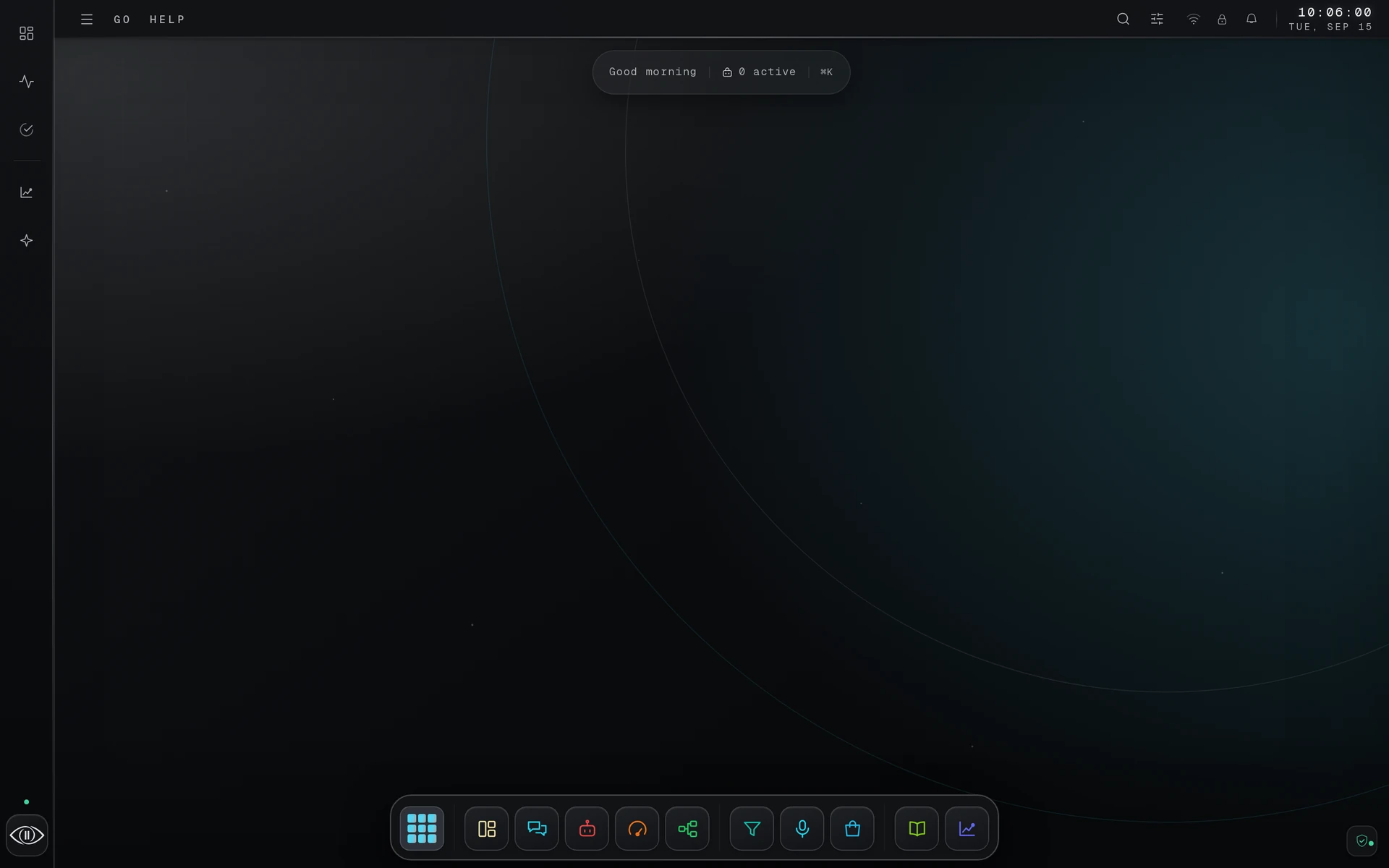
Eyeleven is an AI Workforce OS for coordinating business operations. OmniForces combine specialized agents, workflows, tools and shared memory into complete business capabilities. Your workspace brings conversations, knowledge and human review together in a browser-based interface with apps, windows and a dock.
Create your account
- Go to eyeleven.com and open Create your Eyeleven OS workspace (the signup page).
- Enter your Full name, Company name, Work email, and a Password (minimum 8 characters), then confirm the password. An optional Company slogan lets you add a short workspace description.
- Under Choose your plan, select the plan you want to start with. You can change it later from the Billing app.
- Select Create workspace.
- Check your inbox and open the confirmation link to verify your email address.
After email verification, onboarding asks you to choose a plan, complete checkout or trial activation, and select an industry (see the Onboarding Guide). When those three steps are satisfied, the desktop opens. Channels, knowledge, OmniForce configuration and workflows are separate tasks on the desktop setup checklist.
Signing in
Your workspace lives at app.eyeleven.com. Sign in with your work email and password, or request a magic link to sign in without a password. If you forget your password, use Forgot password? on the login screen.
The desktop
Eyeleven OS works like a familiar desktop operating system:
- Apps open in windows. Each app — Conversations, AI Employees, Billing, and so on — opens as a floating window you can move, minimize, and close. Several apps can be open at once.
- The dock sits at the bottom center of the screen. It holds your pinned apps in groups: Overview, Conversations, AI Employees, EyeClaw, and Workflows; then Leads, Voice, and Neural Store; then Knowledge Base, Analytics, and Settings. Hover an icon to see its name; click it to open the app or bring its window to the front.
- The Eyeleven menu is the round Eyeleven button at the left end of the dock. It opens the start menu, which lists every app your workspace is entitled to — including apps that are not pinned to the dock, such as Billing and Integrations.
Which apps you see depends on your plan and your role in the workspace: the dock and start menu only show apps you are allowed to use.
Opening your first apps
- Click Overview in the dock to see your workspace dashboard with live activity.
- Open Conversations to see the inbox where your OmniForces handle customer chats.
- Open AI Employees to review and manage your deployed OmniForces.
Tips
- Language. The interface language is a workspace preference. Review or change it later in Settings.
- Minimized windows stay in the dock — click the app icon again to restore them.
- Billing is always one click away. Open the Eyeleven menu and choose Billing to see your plan, Neural Credit balance, and invoices.