
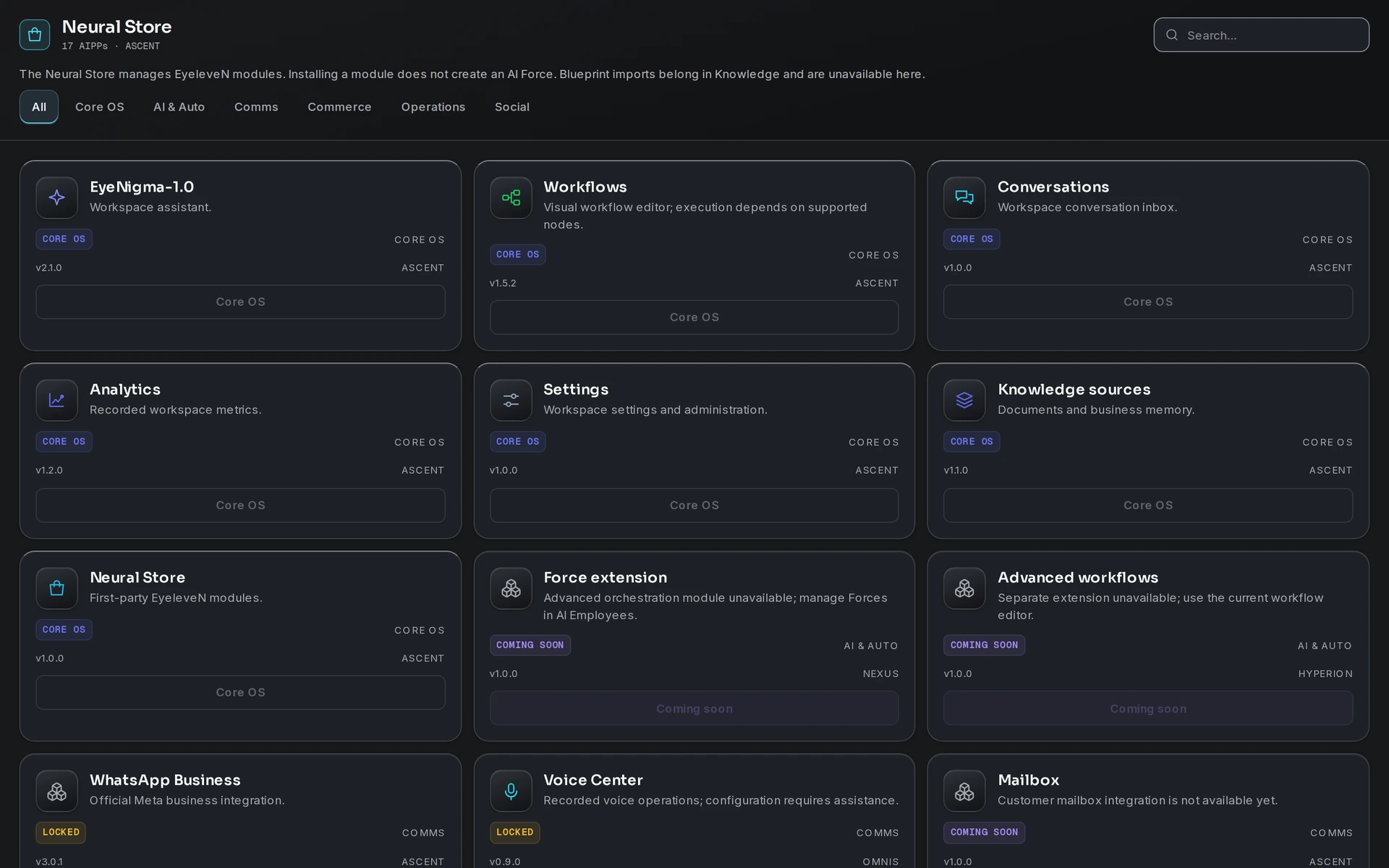
The Neural Store is the marketplace built into Eyeleven OS. From it you install two kinds of items into your workspace:
- AIPPs — application modules that add capabilities to your OS (apps, integrations, industry modules).
- Blueprints — ready-made bundles for a use case or industry that install drafts of OmniForces, workflows, and knowledge documents for you to review and activate.
Open the Store from the desktop dock, then switch between the AIPPs and Blueprints tabs. A search box and category filter narrow the catalog.
Categories
AIPPs are organized into: Core OS, AI & Auto, Comms, Commerce, Operations, Industry, and Social. Blueprints come in three groups: Industry Kits, Workflow, and OmniForce.
Item states
Every card shows the item's current state in your workspace:
- Core OS — part of the operating system itself; always on, never uninstallable.
- Available — ready to install on your current plan.
- Installed — active in your workspace (you can Disable and later Enable it).
- Beta — installable, marked as early access (Install beta).
- Locked — requires a higher plan; the button becomes Upgrade.
- Coming Soon / Preview — visible in the catalog but not yet installable.
Installing an AIPP
- Open the Neural Store and find the item (search or filter by category).
- Check the plan badge on the card — each item shows the minimum plan it requires (Ascent, Nexus, Hyperion, or Omnis).
- Click Install. The card shows Installing… and then flips to Installed.
- If the item has an OS window, its icon appears in your desktop launcher immediately.
If an install fails you will see Install failed with a Retry button — installs are safe to retry.
Plan-gated items
Items are gated by subscription plan. When an item requires a plan above yours, its state shows Locked and the action button reads Upgrade. Upgrading your plan in Billing unlocks it — nothing else changes; the item then installs like any other.
Installing a Blueprint
Blueprints never activate anything behind your back. Clicking Install Blueprint creates drafts, and the Store tells you exactly that: "Drafts created. Review the OmniForce and Knowledge documents before activation."
The Review Drafts panel then walks you through the follow-up:
- Open Workforce — find the OmniForce draft and review its role and configuration.
- Open Knowledge — find the Blueprint document, review and edit its content.
- Click Index for AI Search only after reviewing the content.
- Activate the OmniForce only after completing the review in Workforce.
This review-first design exists so that AI never starts answering your customers with content you have not read.
Good to know
- Installed modules can be disabled without uninstalling — useful when testing.
- Hiding or disabling an app is not what protects your data; access is enforced server-side regardless of what the desktop shows.
- The catalog evolves: items marked Coming Soon become installable without any action on your side.